
Exploring Your Dashboard
Exploring the Dashboard and Sidebar
The My Rehab Connection dashboard and left sidebar give you access to all of the key features you will need. To toggle the left sidebar on and off press the dashboard icon in the upper left corner.
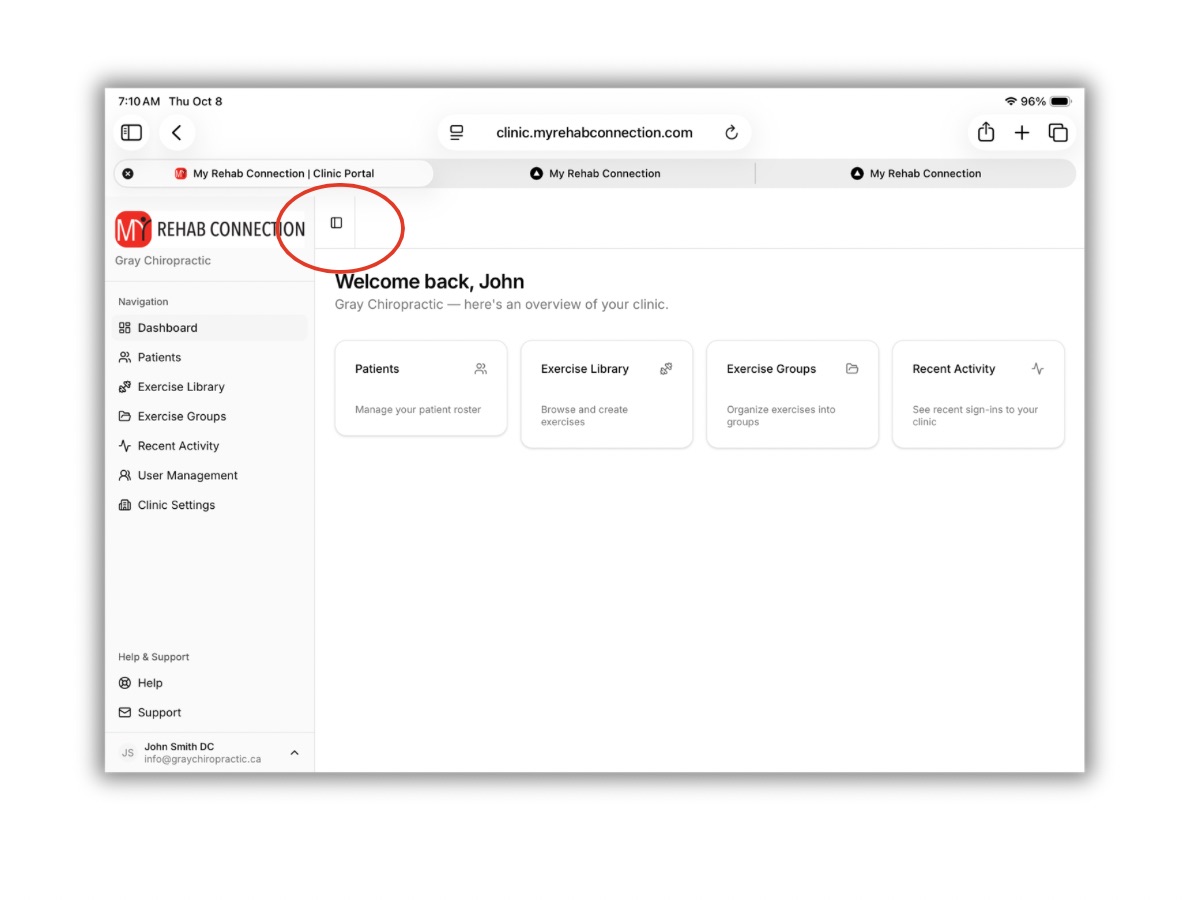
A brief overview of each section is provided below, along with links to learn more about each specific section.
Clinic Settings
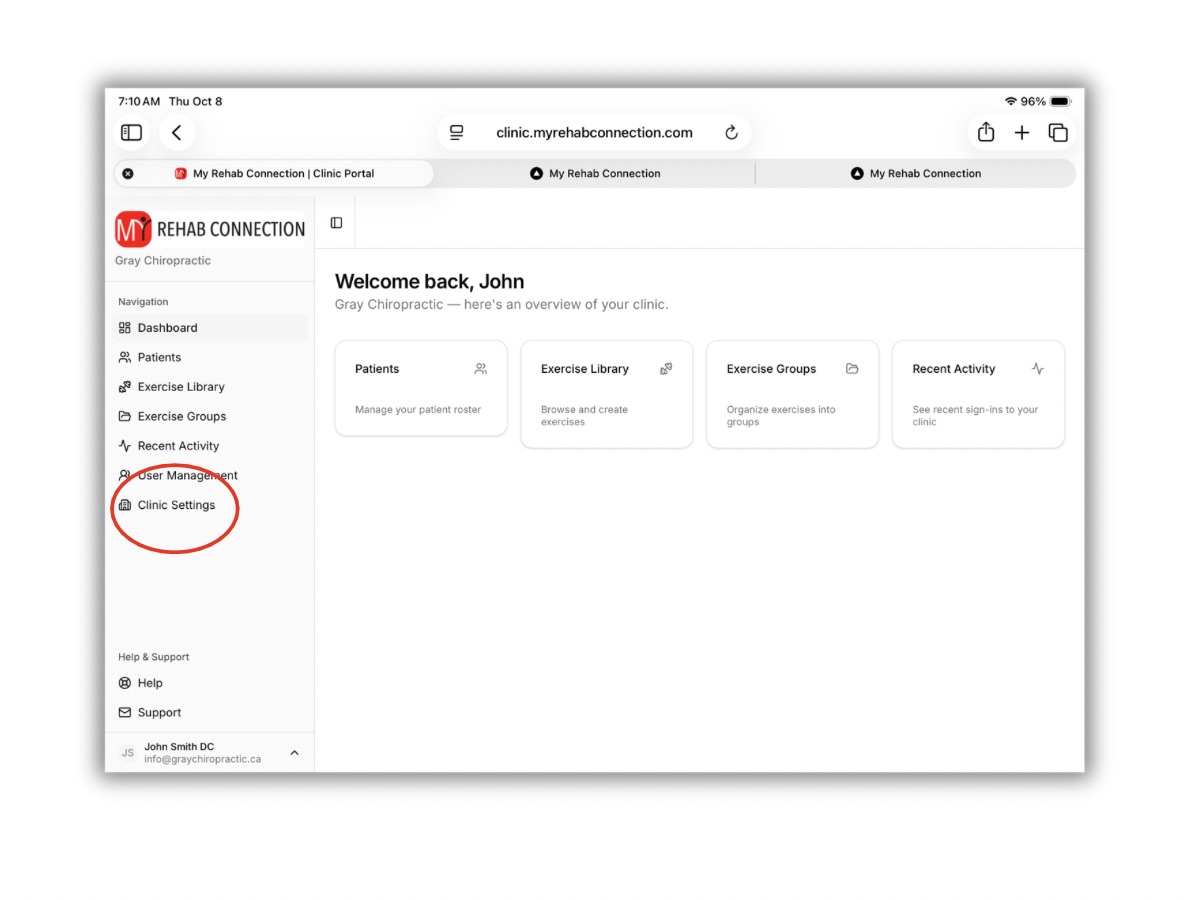
“Clinic Settings” can be found in the left sidebar. This is where you can manage your clinic information and subscription/payment information.
This is also where you can customize the app by adding your clinic logo, contact information, and social media pages.
Patients
The My Patients section is where you can add a patient, as well as prescribe exercises you your patients.
This section is specific to each clinic/account. Only you (and the other users you add to your account) will have access to this section.
Exercise Library
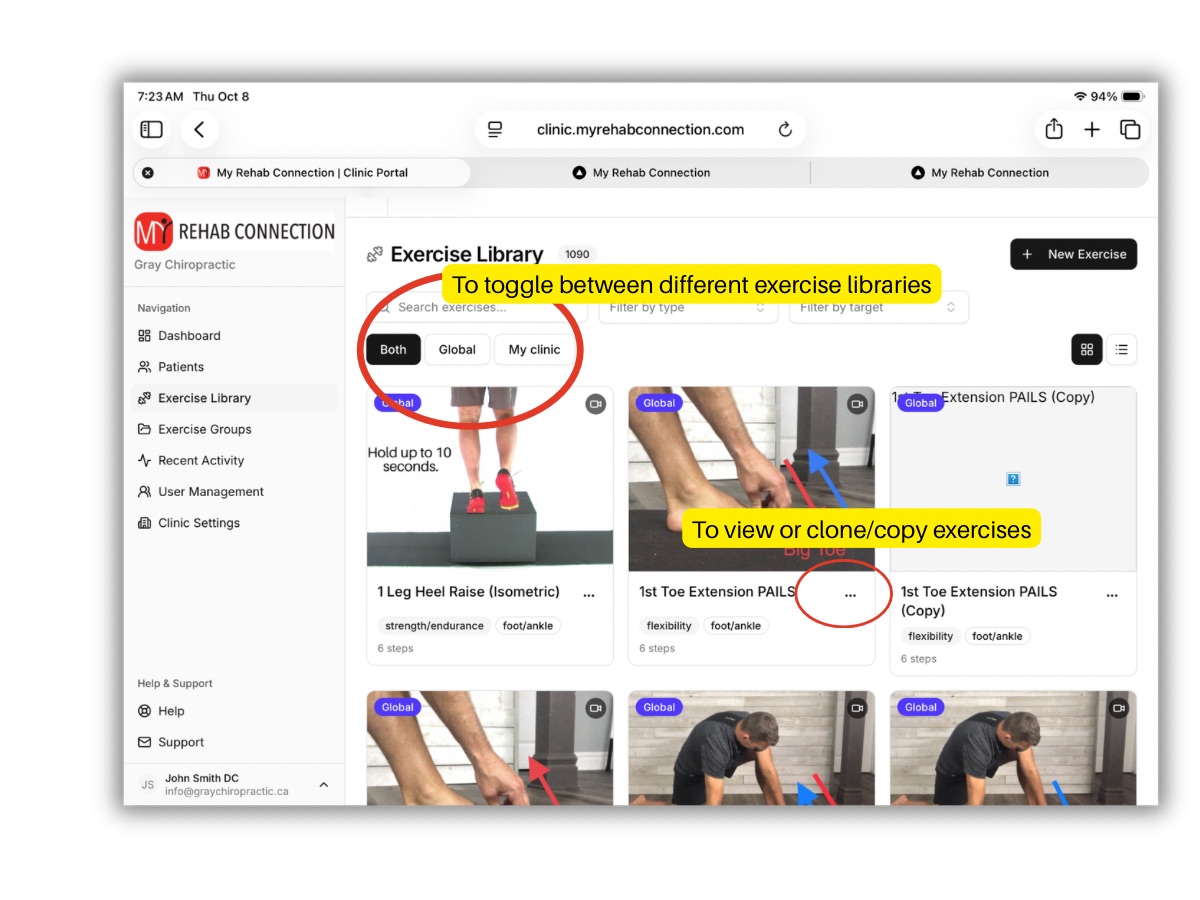
The Exercise Library is where you will find all of the exercises. This will include the “Global” Exercise Library that every user has access to. This will also include your “My Clinic” exercise library. This is the custom exercise library that you create by either copying/cloning exercises from the Global Library, as well as any custom exercises you create. When viewing the exercise library you can view exercises based on the “Global” library, you custom “My Clinic” library, or “Both)
From this section you can view or copy/clone exercises to your “My Clinic Library” but clicking on the 3 dots at the bottom right of each exercises. To assign exercises to patients you must be in the “Patients” tab.
Exercise Groups
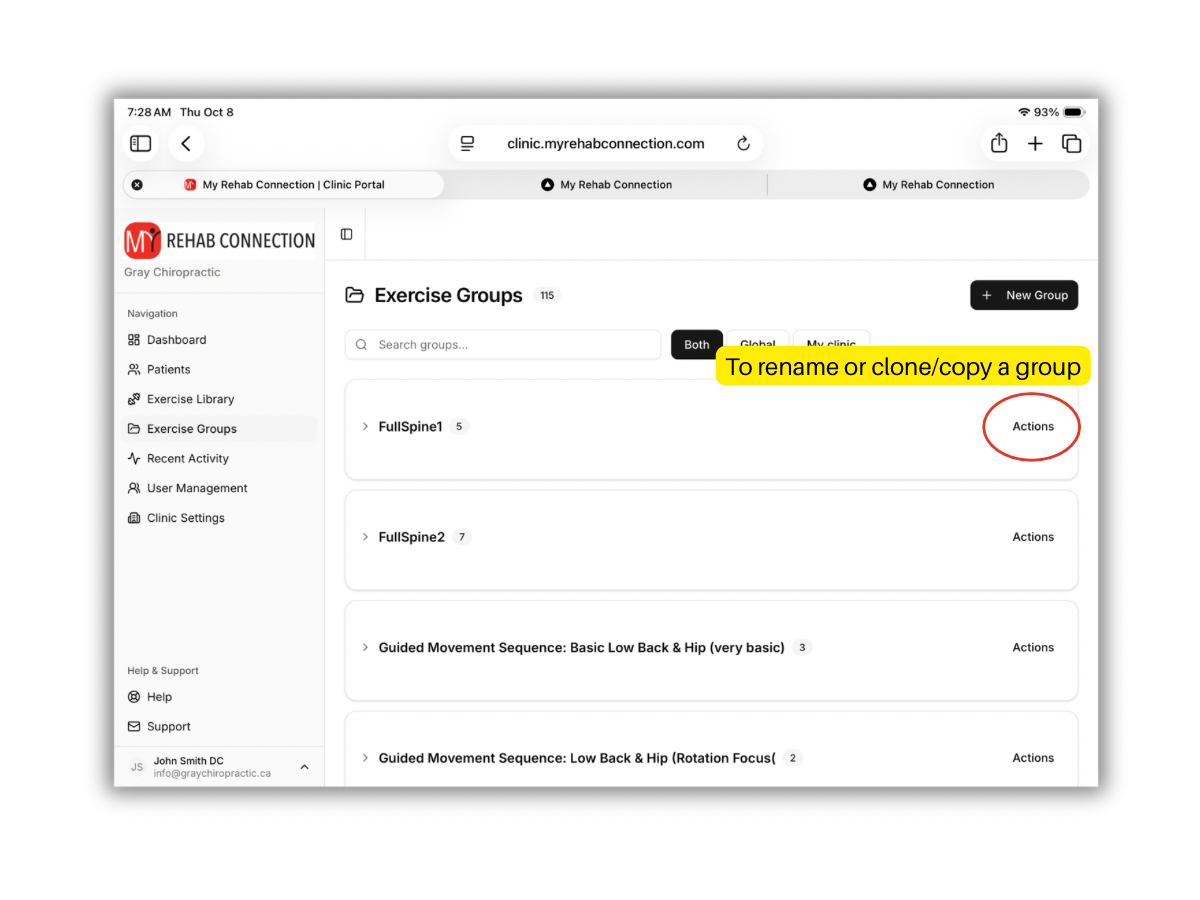
The Exercise Groups section is where you will find pre-loaded exercise groups and templates. These are available to all My Rehab Connection subscribers.
You cannot edit any of the preexisting groups directly, but you can copy/clone any of the preloaded groups and edit them that way (to copy/clone any group click the “Actions” lint to the right of a group.
Any custom groups you copy or create will appear towards the top of the Exercise Groups List. The preloaded groups will appear below and have a Lock Icon to indicate they cannot be directly edited.
Note: To assign exercises from exercise groups you must be in the “Patients” tab.
Recent Activity
In this section you are able to view recent usage of your account. This includes any patients that have logged in to view their exercises, and any users/clinicians that have logged in to use the clinician portal.