
Prescribing exercises using exercises groups
Prescribing Exercises Using Exercise Groups
In addition to prescribing exercises to patients from the Exercise Library, your can also prescribe exercises using Exercise Groups.
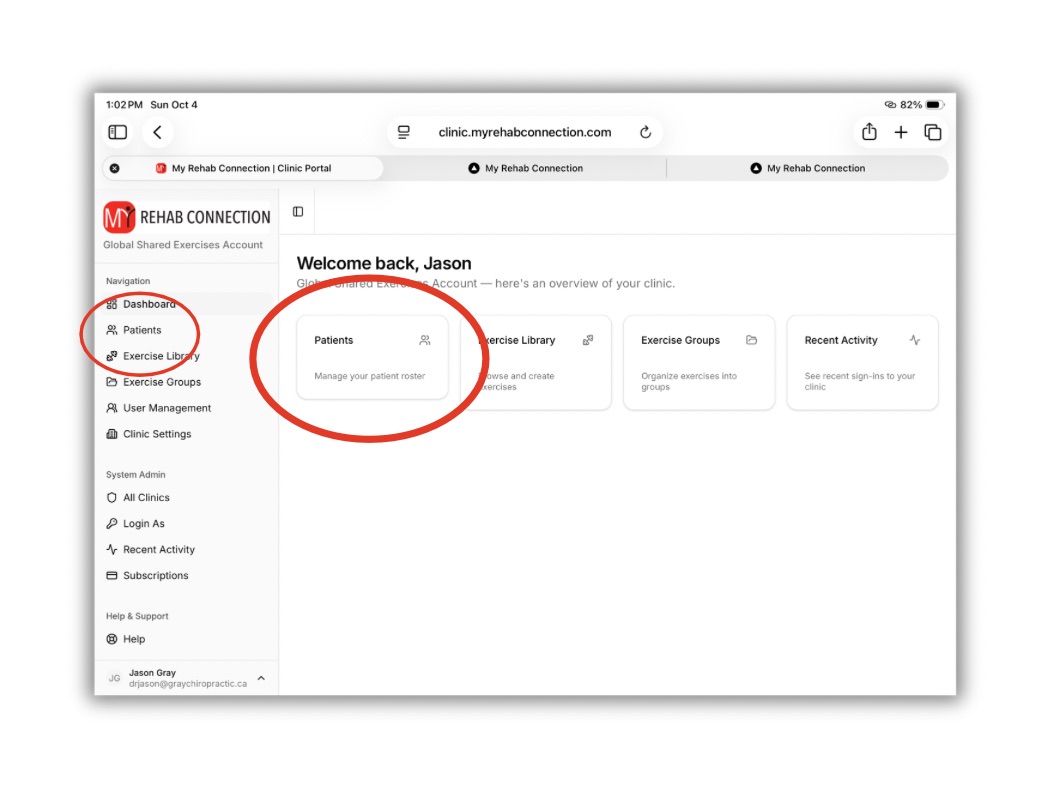
To access a patient click the “Patients” link from the left sidebar or Dashboard.
From the Patient window search for the patient you want to edit from the top search bar.
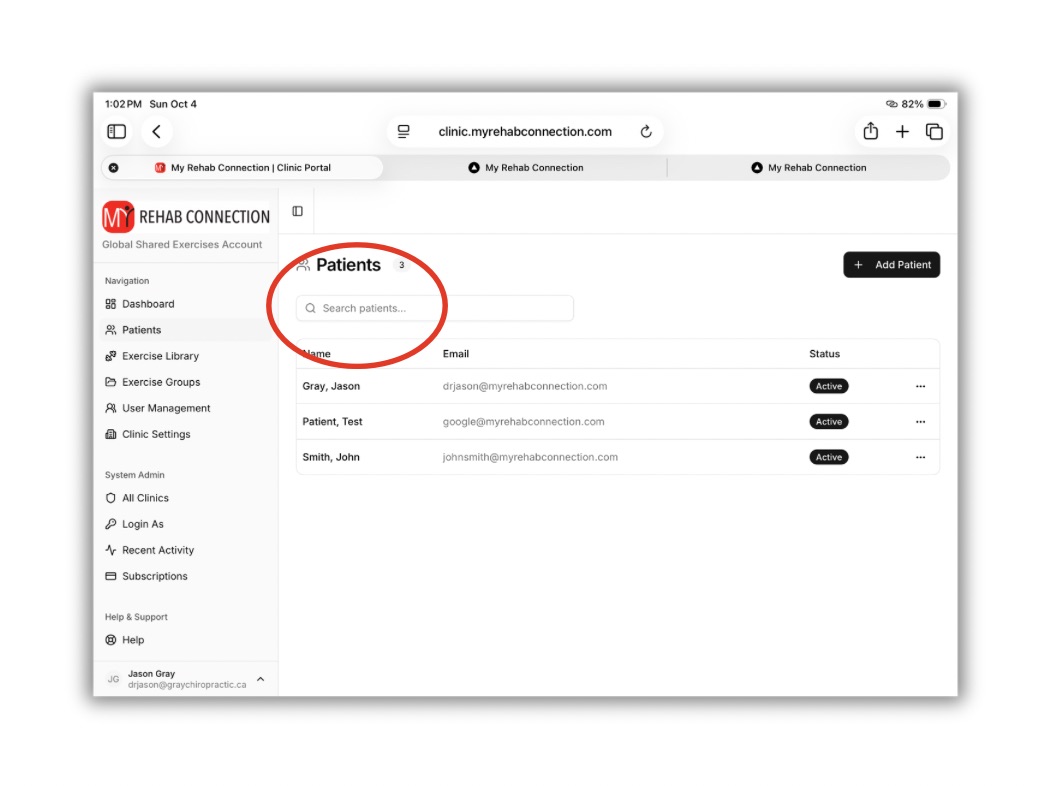
Click on the patient you want to work with. As the patient screen opens your will first see the exercises currently prescribed to the patient (there are no listed exercises in this example as here we are prescribing exercises for the first time).
Towards the bottom of the screen you will see options to “Assign from Library” or “Assign from Groups”.
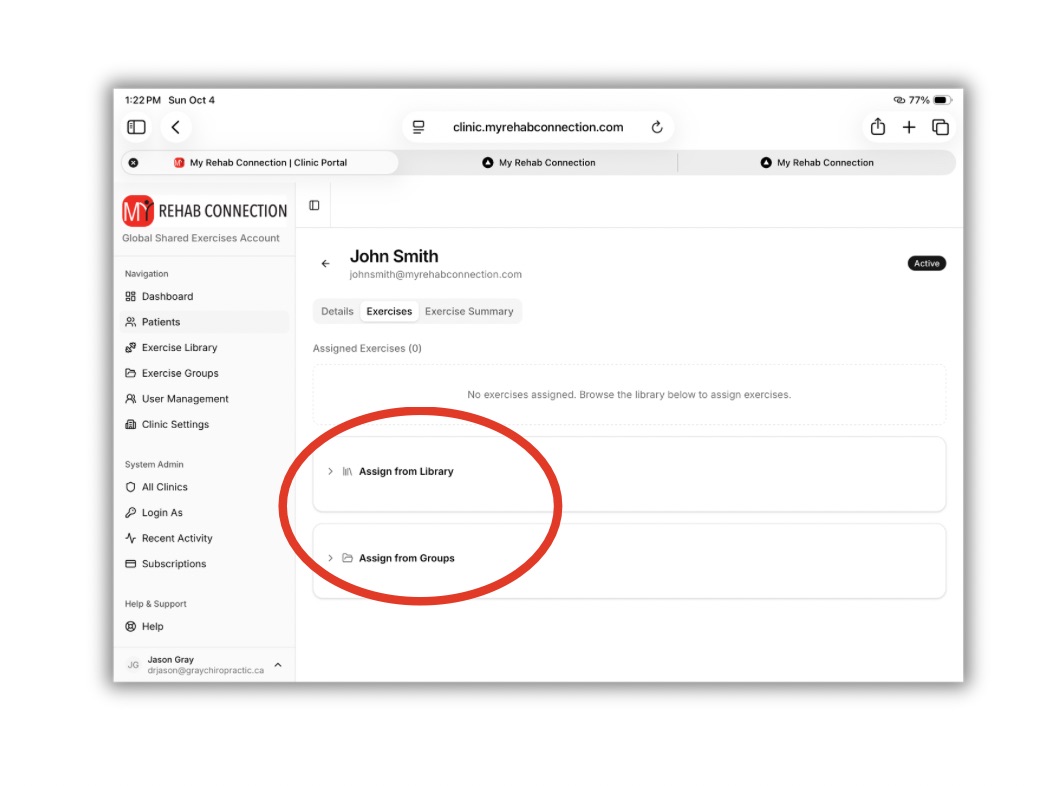
To “Assign from Groups” press the drop down arrow to open the Exercise Groups tab.
From here you will see a list of exercise groups and templates (this will include preloaded groups available to all users, as well as any custom groups you can create yourself. Note: You cannot modify the preloaded groups directly but you can copy/clone them and modify them that way.)
To assign exercises from the group click the arrow to display the exercises in each group.
From here you can prescribe any individual exercises by clicking the “+” icon.
Alternatively, you can assign the entire group to the patient by clicking the “Assign All” button.
Note: If you assign the entire group you are set exercises “active” or “inactive” once they are listed in the “Assigned Exercises” list for the patient.
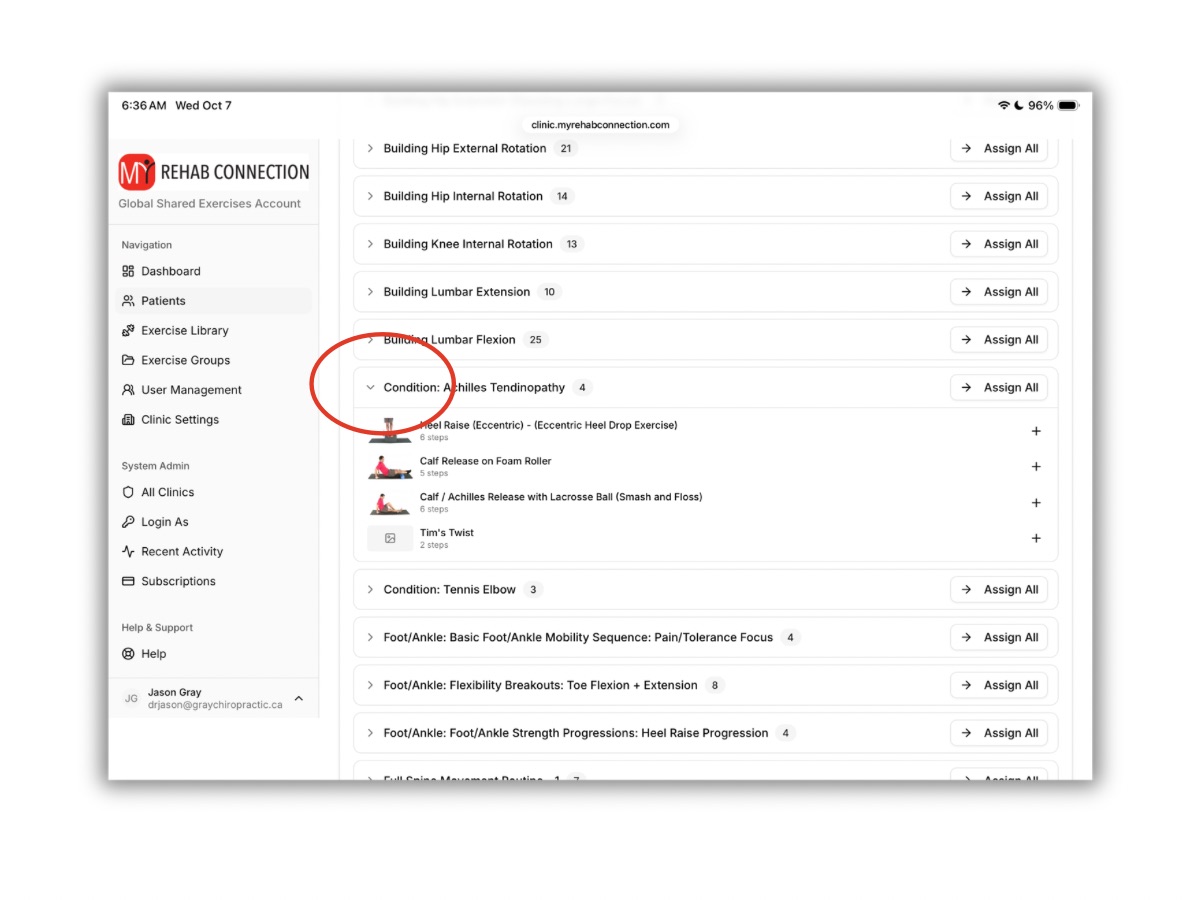
Note: Any groups you create yourself will be listing at the top of the Exercise Groups list. The preloaded groups will appear below in alphabetical order.