Adding Your Own Exercises
Adding Your Own Custom Exercises
To add your own exercises open the Exercise Library tab and click “+ New Exercise” in the upper right corner of the box.
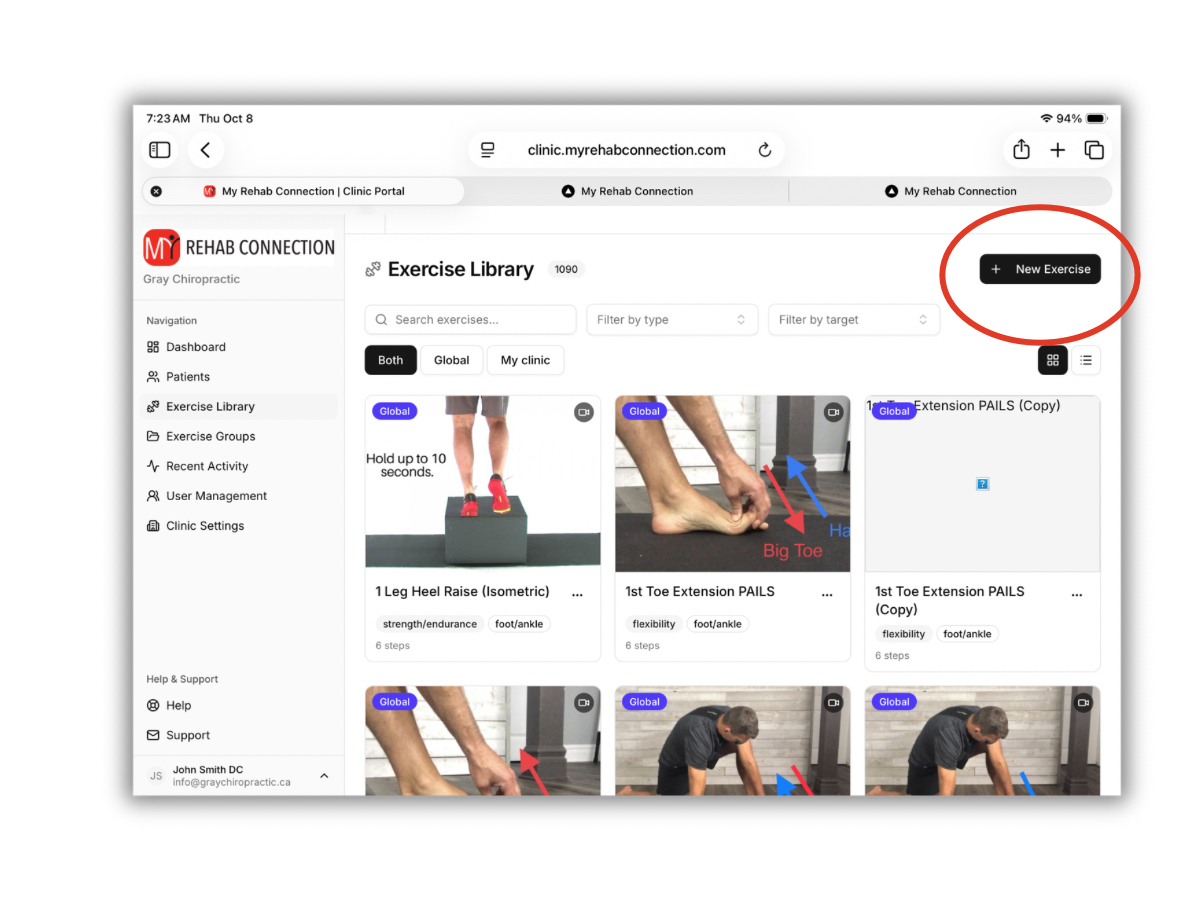
From here you will be prompted add the details (name, type, target) for your exercise. You can change this later if needed.
You will then be able to create the exercise by adding text, pictures, and video.
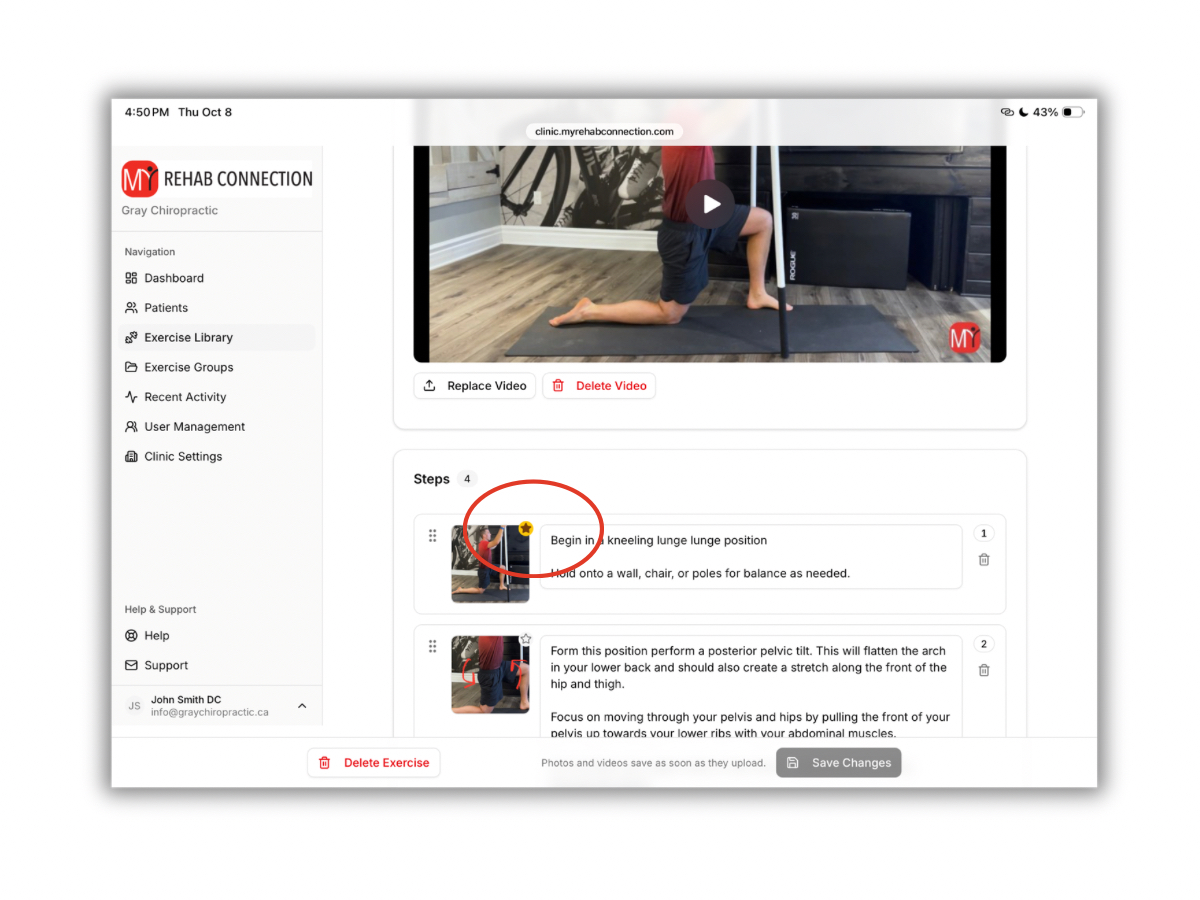
You can add as many steps as needed. Each step will be displayed separately on your patient’s app.
To add a picture to each step simply click the “Upload Photo” button to the right of the exercise text field. You can upload a jpeg or png image.
When you are finished click “Save”.
Selecting an Exercise Thumbnail
You can also specify a thumbnail image for each exercise. Simply click on the “star” icon of the image you want to represent the exercise.
The image you set as the thumbnail will be displayed in the exercise library for your reference as well as the on the app along with the exercise title for your patient to see.